Part 2 - The Unity User Interface
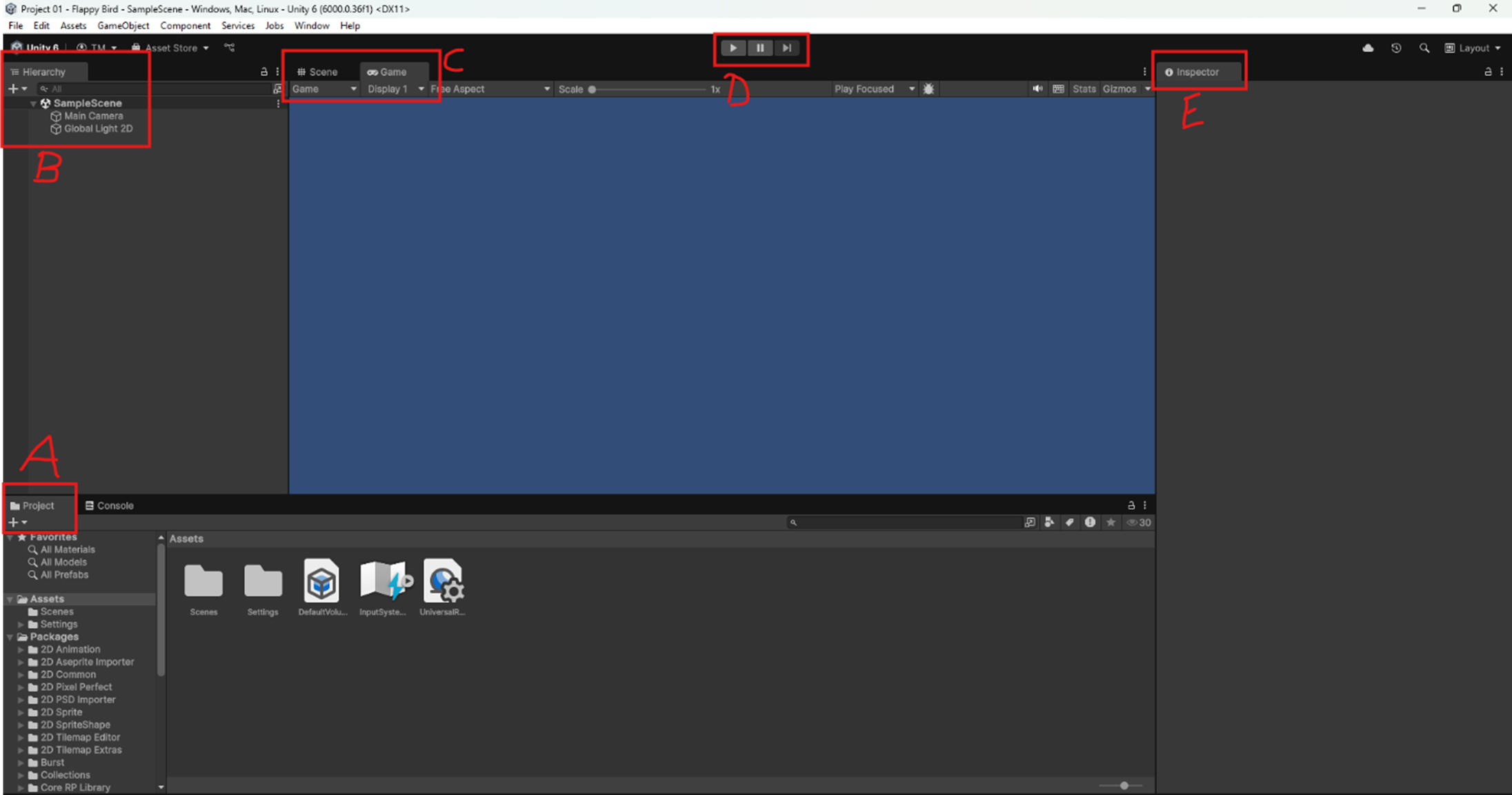
Once your new project has been created, you should be greeted with the Unity editor. There is a lot going on here, but we will explore each section of the UI piece by piece.
The Project Window
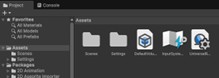
This window is like the file explorer you use on your laptop. It holds all folders and files in your project. The most important folder for us is Assets, where you keep scripts, artwork, audio, and more.
The Hierarchy
A hierarchy is a list of all GameObjects in your scene. In 2D, the order can matter when you use a Canvas to place text or images.

The Scene View and Game View
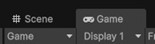
The Scene view is where you build and edit your game. The Game view shows what the game looks like when it runs.
The Play, Pause, and Next Buttons
- Play (right-pointing arrow) runs your game.
- Pause (two vertical lines) pauses the game so you can inspect it.
- Next advances the paused game by one frame.

The Inspector
This window shows all components attached to the GameObject you select in the Hierarchy.